How to Add Student ID to Apple Wallet & Google Wallet (2026)
Step-by-step guide to adding student IDs to Apple Wallet and Google Wallet — supported universities, setup walkthrough, and what campus admins need to know.
How this guide is reviewed
CampusRFID reviews technical guides against standards and official documentation. Where a source list appears, it identifies the primary references used. Card and reader compatibility should still be verified with a sample on the institution's installed system.
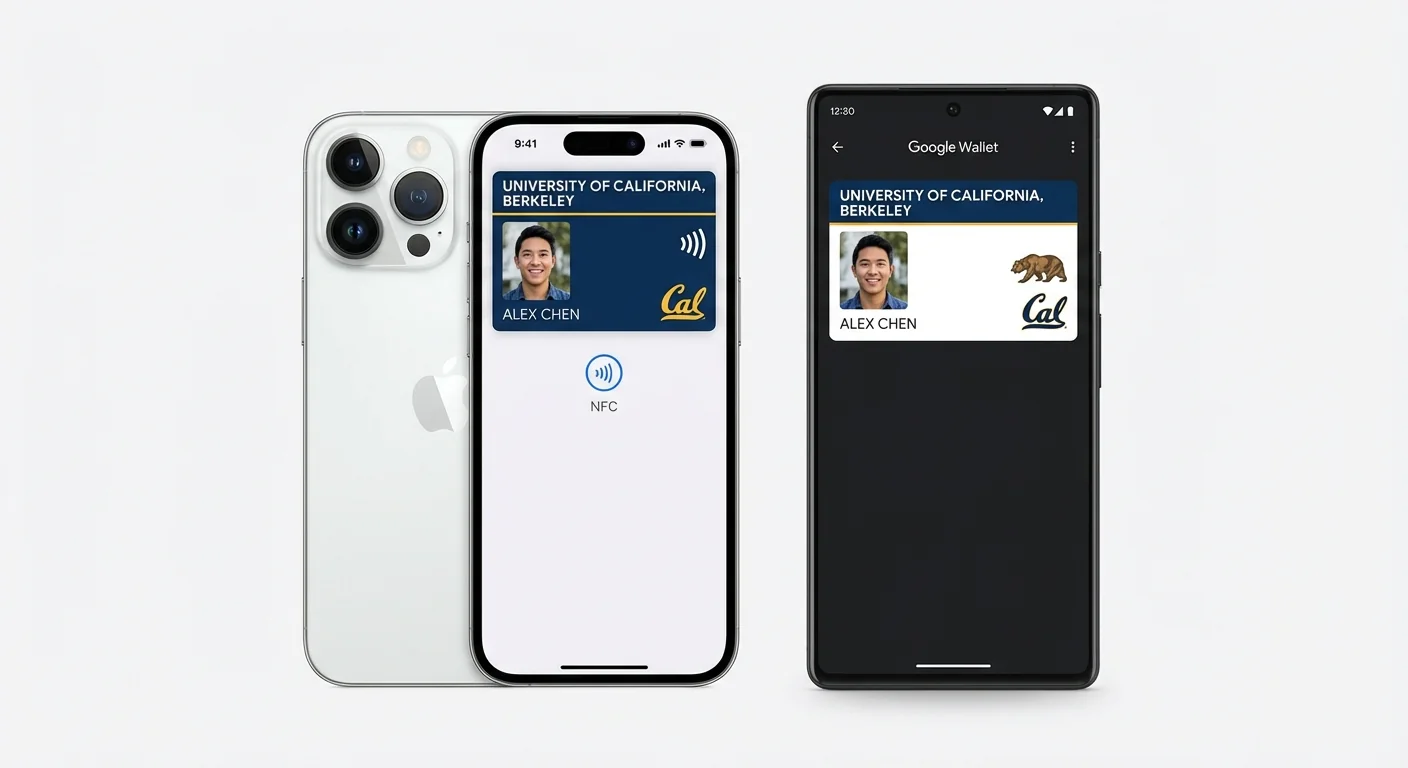
The idea is simple: your phone is already in your hand, so why carry a separate card? At participating institutions and on supported devices, Apple Wallet and Google Wallet student IDs let students present a phone or watch at compatible campus readers for services such as building access, dining, laundry, vending, and library authentication.
For students, it's convenience. For universities, it's a technology deployment with meaningful implications for infrastructure, security, support, and institutional strategy. This guide covers both sides.
How to Add Your Student ID to Google Wallet
If your university supports mobile student IDs through Google Wallet, here's the standard process to add your student ID to Google Wallet on an Android phone:
If you don't see "Add to Google Wallet" in your campus app, your university may not have enabled Google Wallet provisioning yet — contact your campus card office to ask. Apple Wallet steps are similar; see the Apple section below.
How to Add Your Student ID to Apple Wallet
For iPhone and Apple Watch users at supported universities:
Once provisioned, the student ID appears in Wallet and can be used at campus locations whose readers are configured for the institution's supported mobile-credential protocol.
How It Works: The Technical Architecture
Provisioning the Credential
When a university deploys mobile student IDs, the process begins on a participating campus card platform. The student authenticates through the institution or service-provider app, and the platform provisions and manages the mobile credential through the supported wallet integration.
The relationship between the mobile credential and the physical card is platform-specific. Administrators should confirm identifier mapping, key management, revocation, and re-provisioning with their service provider rather than assuming the phone presents the physical card number or that every platform uses the same token model.
Storage: The Secure Element
Apple documents Secure Element and Wallet provisioning protections for supported credentials. Google's Campus ID architecture describes Google Wallet, Google Play services, an account hub, and the service provider's protocol; the implementation can vary by provider and device. Universities should rely on the wallet and service provider's documented security model and should not assume that every Android Campus ID uses the same Secure Element or Trusted Execution Environment design.
NFC Communication
When the student holds a supported device near a compatible reader, NFC carries the credential exchange at 13.56 MHz. Authentication, encryption, and account lookup depend on the wallet, campus platform, and reader protocol. Reader compatibility and offline behavior should be tested with the institution's actual configuration.
Express Mode (Apple)
Apple's Express Mode is a critical feature for campus deployments. When enabled, the student ID works without requiring the student to unlock their phone, authenticate with Face ID or Touch ID, or even wake the screen. The student simply holds their iPhone or Apple Watch near the reader, and the transaction completes automatically.
On supported iPhone models, Express Cards may remain available when the battery is too low for iOS to run. Apple does not promise a fixed five-hour window, and the feature is not available after a normal user-initiated shutdown. A physical credential or another documented fallback is still necessary.
Google Wallet Implementation
Google Wallet student IDs work on supported NFC-enabled Android phones after the student authenticates through the institution's service-provider app. Google says a saved student ID can normally be presented without waking or unlocking the phone; users can opt to require an unlock.
Google's approach supports a broader range of device manufacturers (Samsung, Google Pixel, OnePlus, etc.), which increases the addressable student population. However, the variety of Android hardware means that NFC performance can vary between device models — a consideration for reader placement and support documentation.
Which Universities Support Mobile Student IDs?
Support changes as institutions, service providers, countries, and device requirements change. Apple directs students to their campus card office to confirm participation. Google likewise directs users to the card office and currently documents Campus ID support through participating US campus-card platforms institutions in the US and Canada. Treat the university's current card-services page as the source of truth rather than relying on a static list.
Platform Requirements for Universities
Reader Infrastructure
Mobile student IDs use NFC, but ISO 14443A support alone does not guarantee compatibility. Readers must support the credential protocol implemented by the campus card service provider, and older hardware may require firmware, licensing, configuration changes, or replacement.
Universities should obtain a reader compatibility matrix from their platform provider and test access, payment, library, and offline scenarios before rollout. Consumer pass protocols such as Apple VAS or Google Smart Tap should not be assumed to be the protocol used by a Campus ID deployment.
Campus Card Platform
The campus card management platform must support wallet provisioning and credential lifecycle management, including activation, suspension, removal, and re-provisioning. Platform support differs by wallet, institution, region, and deployment, so administrators should verify the exact combination in current provider documentation.
Network Requirements
Network requirements depend on whether authorization is online, locally cached, or handled through another offline-capable design. Administrators should document the behavior during network loss, the cache and revocation model, and recovery procedures for every reader class instead of assuming that every transaction requires a live backend connection.
Limitations and Considerations
Device Compatibility
Apple requires a compatible iPhone or Apple Watch on the latest supported operating system and a participating institution. Google currently requires an NFC-enabled phone running Android 9 or later, the latest recommended Google Wallet app, and the institution's service-provider app. Institutions should publish the current requirements supplied by each wallet rather than freezing model support into long-lived policy.
International Students
Wallet availability and Campus ID support can vary by country, device region, institution, and service provider. A physical card or another institution-approved credential should remain available for unsupported devices and exceptional cases.
Phone-Free Zones
Examinations, certain laboratory environments, clinical rotations in medical schools, and some performance spaces prohibit smartphones. Students need physical photo ID in these settings.
Privacy Considerations
Mobile credentials add device and provisioning records to the campus identity lifecycle. Universities should document which data the institution, wallet provider, and campus platform collect; the purpose, retention period, and access controls; and the process for lost devices and account removal. European institutions must identify an appropriate GDPR lawful basis and meet transparency and data-minimization duties.
Deployment Best Practices
CampusRFID manufactures physical campus cards that can be specified alongside a mobile credential program. Coexistence depends on the selected card technology, reader model, keys, firmware, licensing, and campus platform, so compatibility should be validated before production.
Browse our high-security access cards for a physical credential option, or our dual credential cards if legacy readers remain in circulation. The RFID glossary explains the chip and frequency terms that inform reader compatibility.
*Deploying mobile student IDs alongside physical campus cards? Contact us to ensure your card specifications align with your mobile credential platform.*
Primary sources
Standards, regulations, and first-party technical documentation consulted for this review.
- Save your Student ID to Google Wallet — Google Wallet Help
- Google Wallet Campus ID overview — Google for Developers
- Express Cards with power reserve — Apple Platform Security
Explore this topic
Product pages selected for the subject covered in this guide.
Ready to Implement RFID on Your Campus?
Contact us to learn how our RFID solutions can improve campus security and student experience.
Related Articles
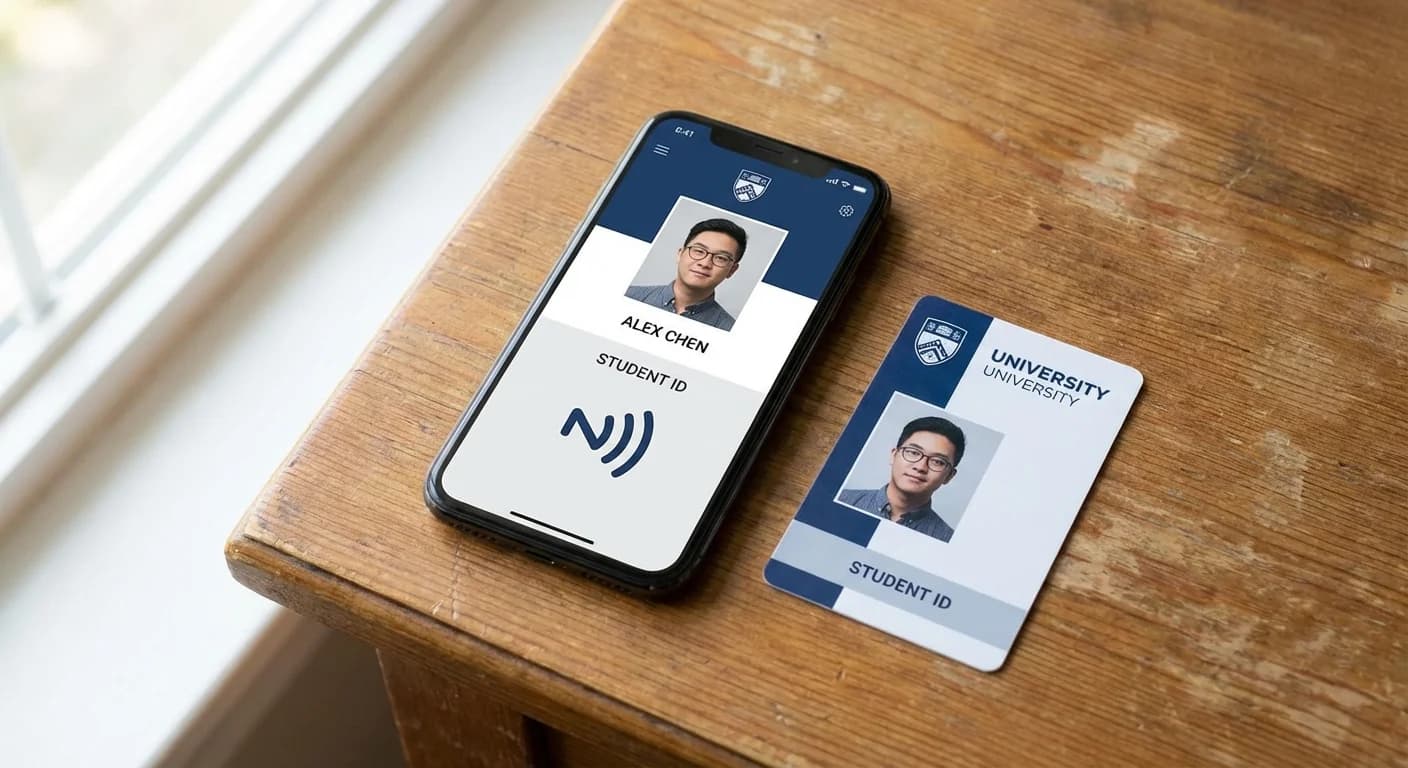
Mobile vs Physical Campus Cards: Which Is Better in 2026?
Mobile wallet IDs vs physical RFID cards — 97% of students want both. Why the hybrid approach wins, with real cost and reliability data for university decision-makers.
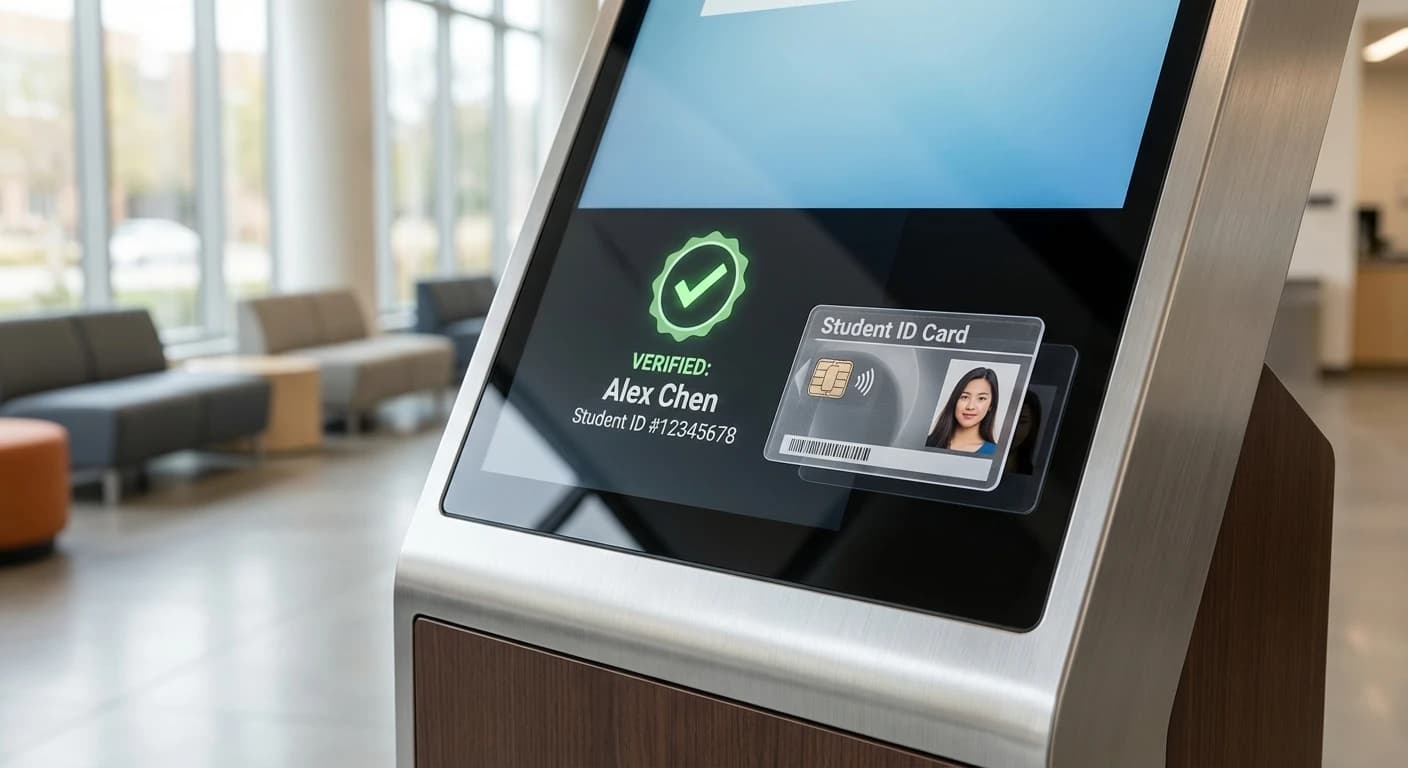
From ID Cards to Digital Credentials: How RFID Bridges Physical and Digital Campus Security
The campus ID card has come a long way from laminated photos and magnetic stripes. In 2026, educational institutions face a pivotal moment: digital credentials are reshaping how students prove their identities, skills, and achievements online, while physical security demands remain as critical as...